
Migrate VCF SSO from Embedded to Instance Deployment Mode

When I upgraded my homelab to VCF 9.1 I had a few issues with Identity Broker and VCF SSO. The short version is that I ended up with VCF SSO running in the Embedded deployment mode. This means that VCF SSO runs from the vCenter server in the Management workload domain. This mode is supported in VCF 9.0.x and 9.1 but there are some important considerations:
- It potentially requires exposing port 443 on the vCenter server to users that would not normally have or need access to it.
- For larger numbers of users / groups it places extra resource requirements on the vCenter server.
- It’s not a highly available solution.
Post-upgrade in my homelab, one of my outstanding tasks was to migrate VCF SSO back to the Instance deployment mode. This being a homelab that I’m in control of, I could just have unconfigured SSO and reconfigured it again. But I wanted to try out the migration workflow.
The migration is accessed as a day-2 action of the configured VCF SSO through VCF Operations.
Navigate to MANAGE > Fleet Management > Identity & Access. Click the Identity Broker object in the “VCF SSO” section. Under ACTIONS you’ll find an option to “Migrate from Embedded to Instance”.
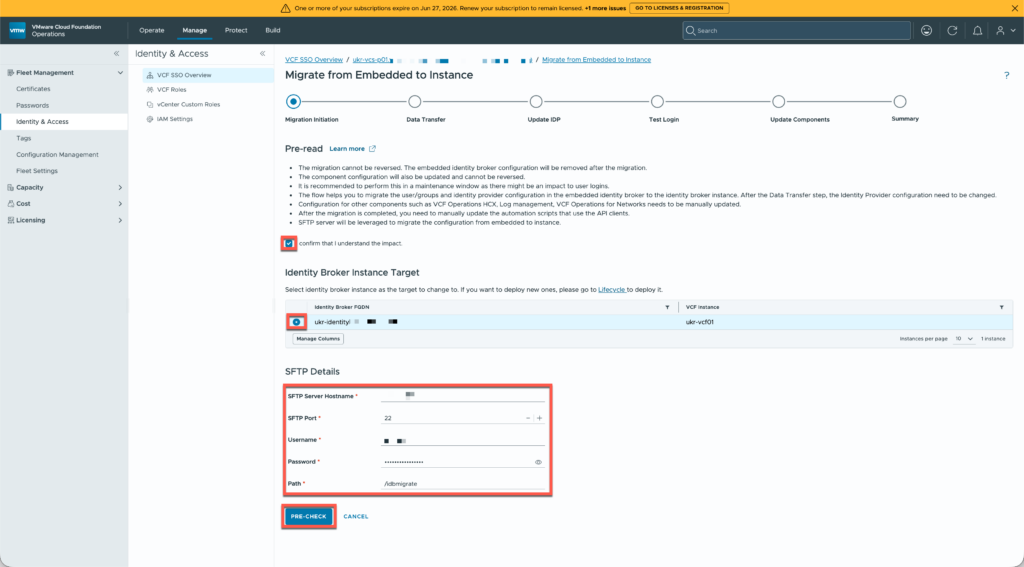
The process essentially performs a backup of VCF SSO to an SFTP target and then restores it into a new Identity Broker instance (which should already be deployed / configured). Once you’ve populated SFTP details you click on the PRE-CHECK button to continue.
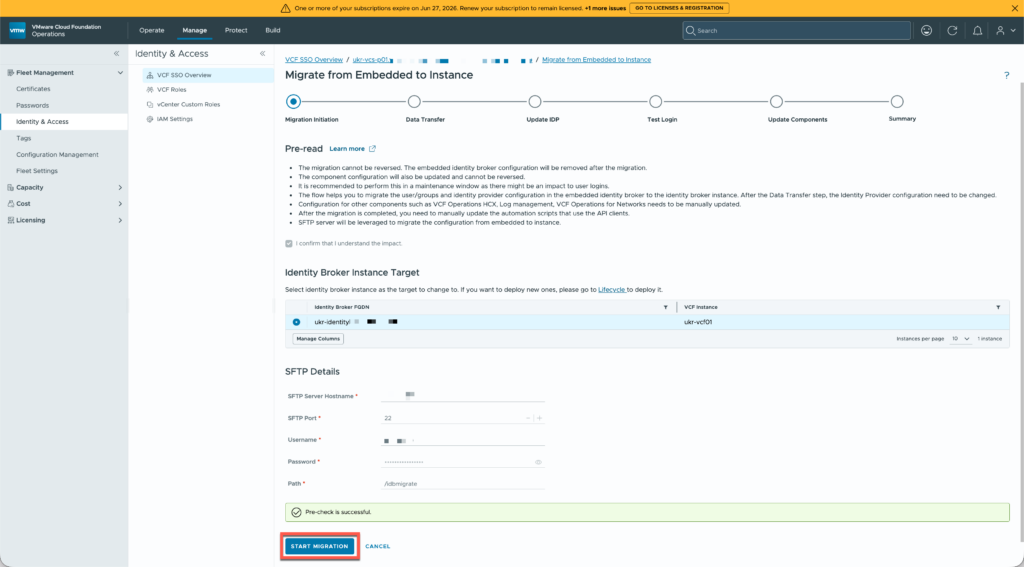
Assuming that everything is ok, just click the START MIGRATION button to get going.
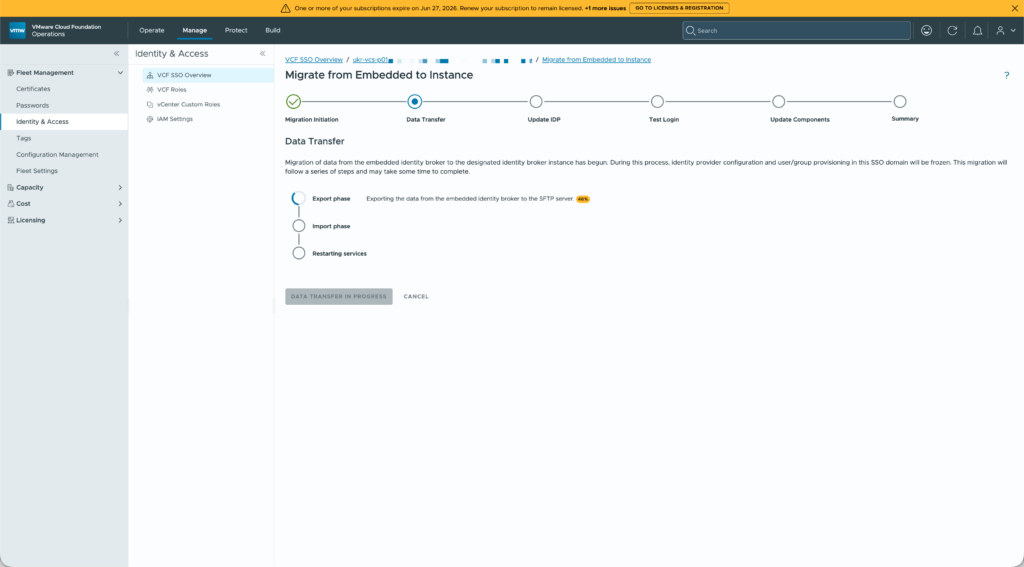
It takes a few minutes to run through the data transfer.
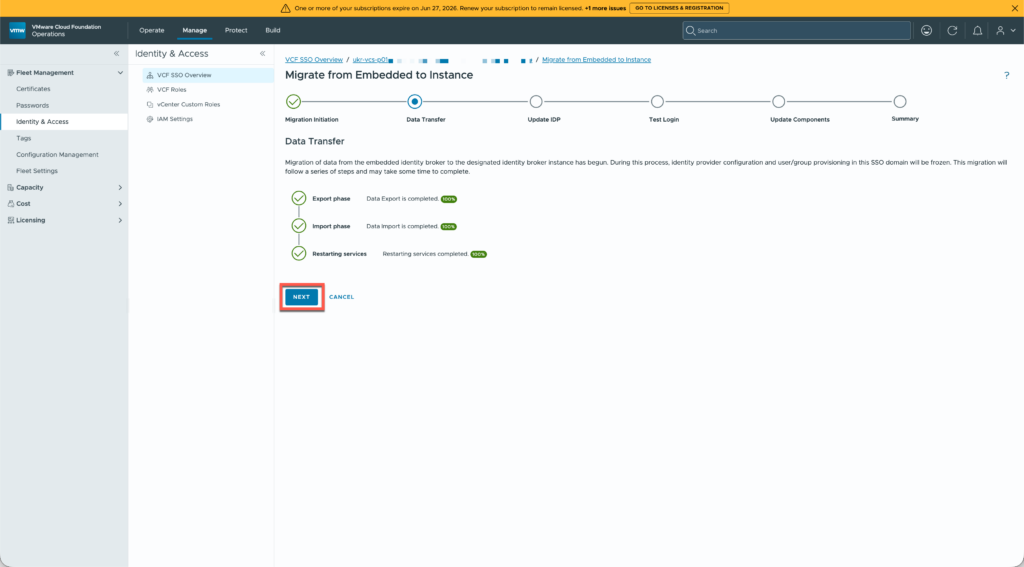
Once complete, it’s the NEXT button to move on.
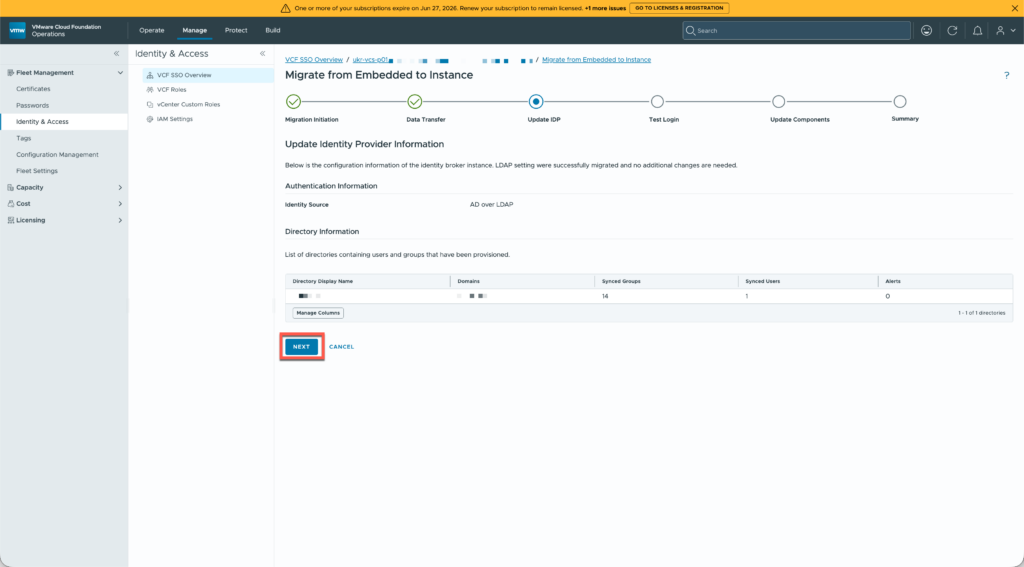
The next page’s title suggests that something happens here, but it looks more like an interim summary page. Click the NEXT button.
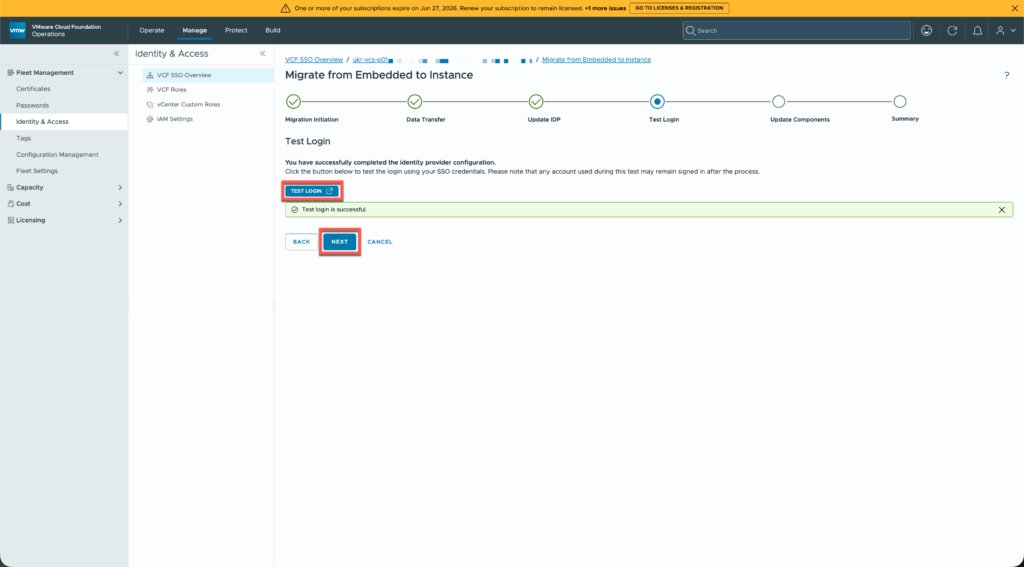
The next step is to test the login functionality. The TEST LOGIN button opens a new tab / window and you should authenticate as a user from your authentication source (AD / LDAP in my lab’s case). If it’s successful then you click the NEXT button to continue.
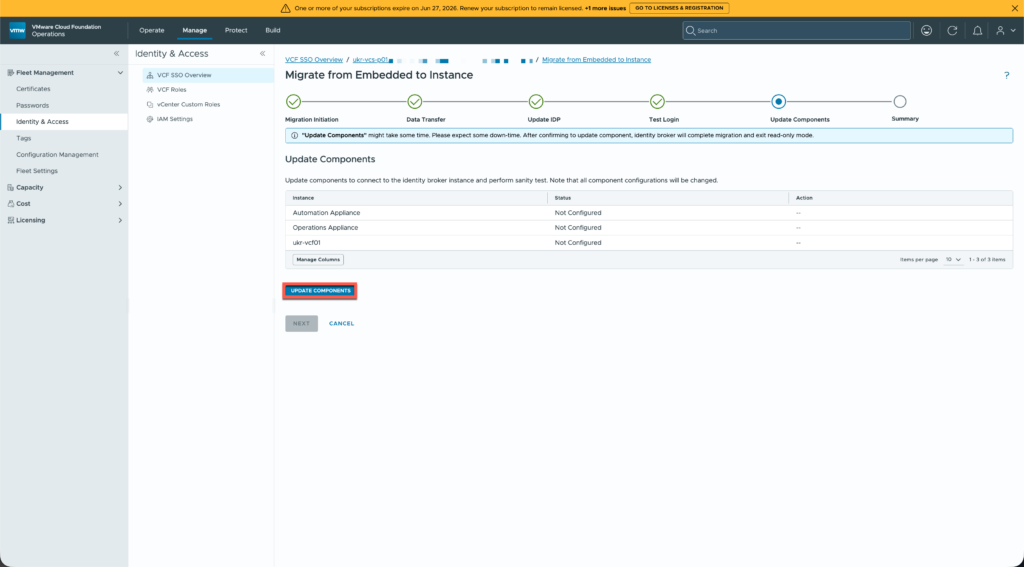
All of the VCF components will still be referencing the Embedded Identity Broker and must now be re-configured. Click the UPDATE COMPONENTS button to have the following components updated:
- VCF Automation
- VCF Operations
- All vCenters in the VCF instance
- All NSX Manager clusters in the VCF instance
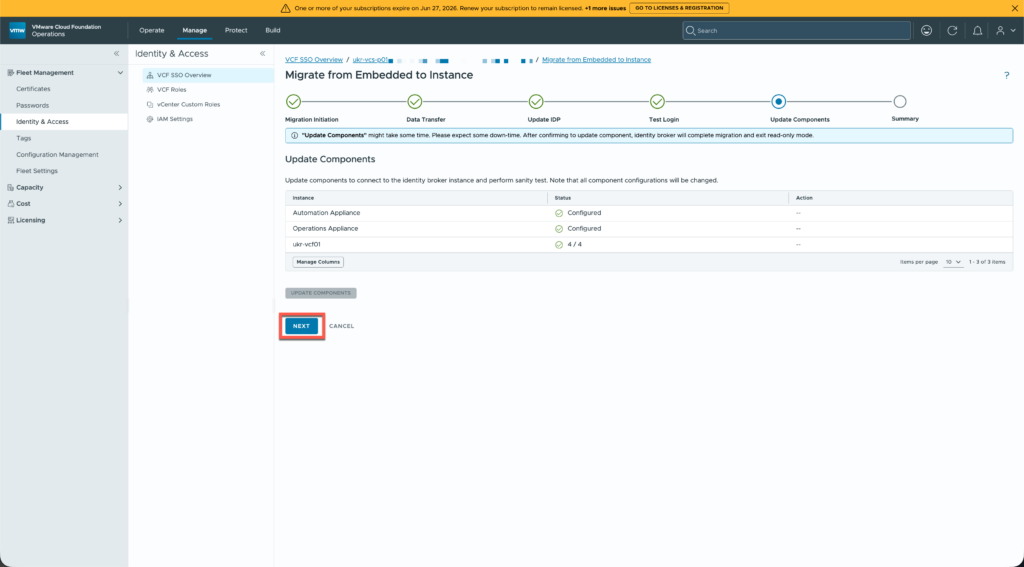
Again, a few minutes are needed for the changes to complete. Click the NEXT button when they’re done.
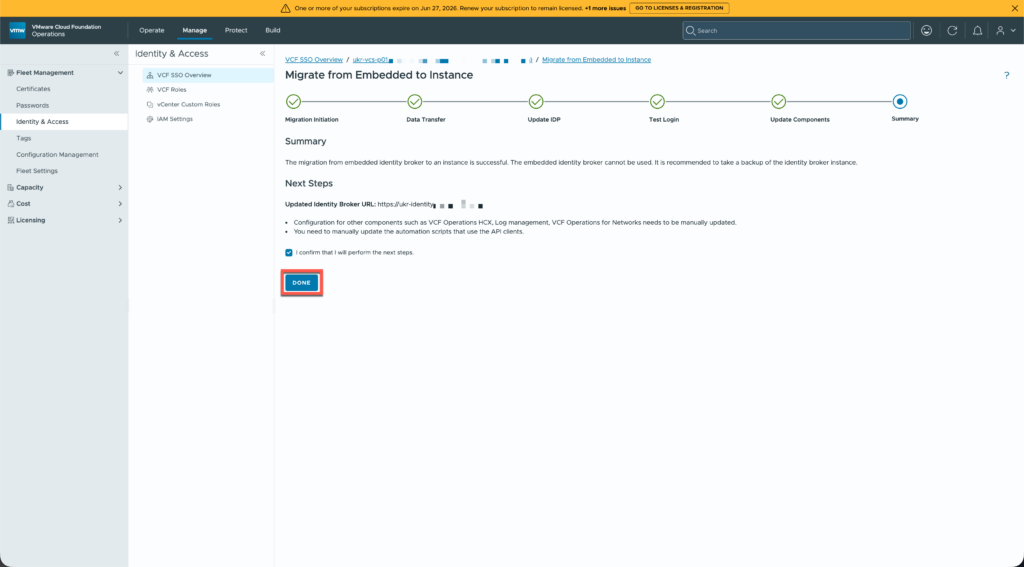
Finally, the summary page reminds you of the new Identity Broker URL and that some VCF components still require manual re-configuration. Click the DONE button.
That’s it!
One minor niggle that I observed is that the display name for the SSO is not updated automatically. However, if you use the EDIT link you can change the display name very easily.
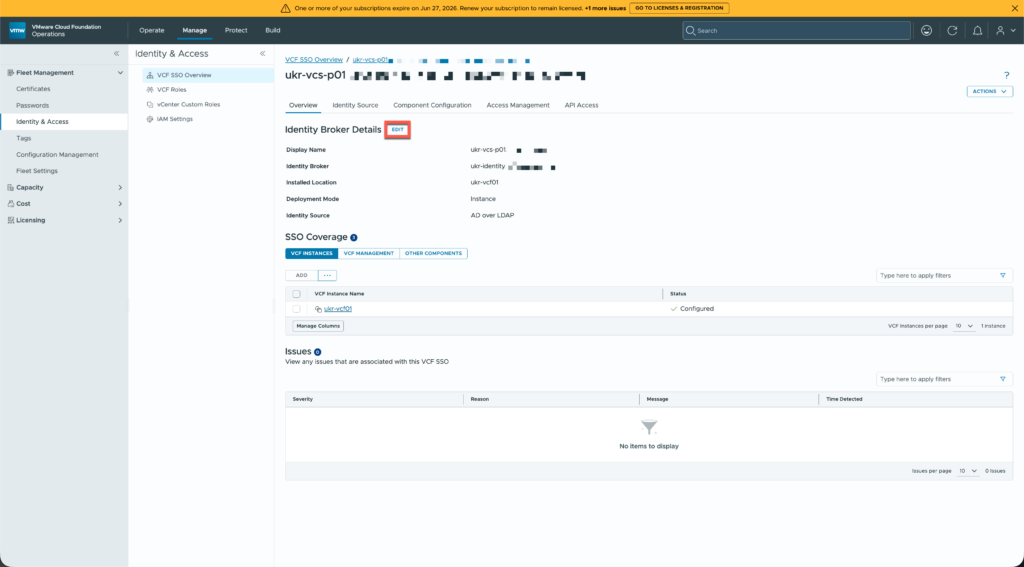
Photo by Michael Poore, Kenya 2025.


Related Posts