
Using ‘substring’ in VCF Automation cloud templates

I had the opportunity this week to spend some quality time in my happy place in the Homelab this week – VCF Automation / VMware Aria Automation / VMware vRealize Automation. Specifically I was making some cloud templates when I stumbled on a tiny issue with a simple solution that others may trip over. Read on to find out more…
Background
As I already mentioned, I was trying to put together a couple of new cloud templates. My preference is to experiment and create the basics using the UI and then copy the YAML code into a GitLab repository. The contents of this repository are imported by VCF Automation and future updates and modifications are made using a code editor and synchronised. I do this because that way my templates are stored outside of VCF Automation and are more portable. I can also make use of different branches in GitLab to manage the progression of changes from development to production. Infrastructure as Code (IaC)!
I wanted the name of the VM resource in the template to be based on the values of some inputs. This is easy to combine with the custom naming feature to add uniqueness to resource names quite easily.
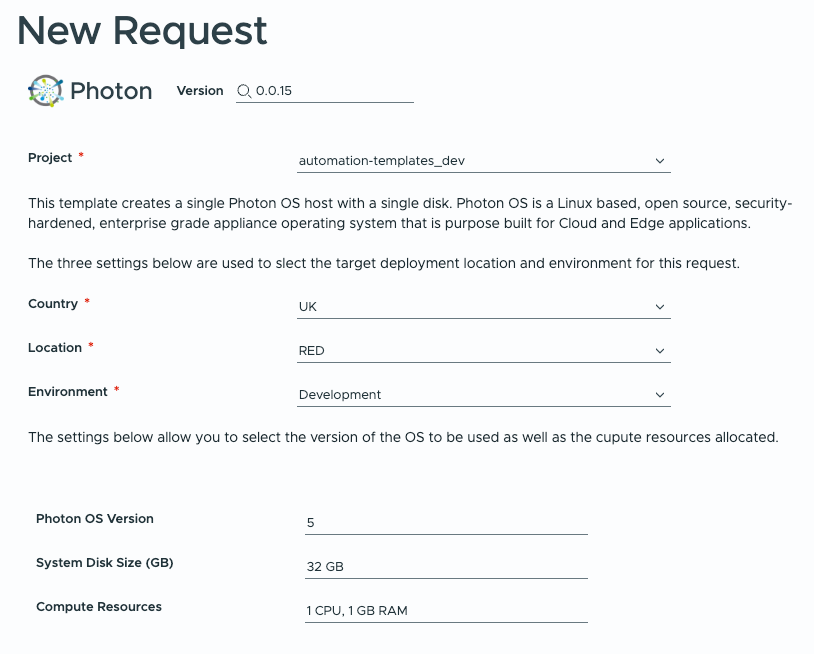
My aim was to have three inputs (Country, Location, and Environment) shown in the screenshot above provide the structure of the resource name in the following way:
<country>-<location>-<environment>With the value for ‘environment’ being potentially quite long, I wanted to use only the first character – ‘p’ for ‘production’, ‘d’ for ‘development’ etc.
Not to go too far off-piste, but with the initial resource name set to something like ‘uk-red-d’, it can be used by a Custom Naming configuration in VCF Automation like the one below to produce a unique resource name like ‘uk-red-d-002’:
${resource.name}-${###}Git Import Error
With all of that in place I just had to take the possible input values for the environment field, which I was not including in the template itself, but in the Custom Form in Service Broker, and capture the first letter. So at this point the cloud template contained the following:
# ----- Inputs -----
inputs:
  environment:
    type: string
  country:
    type: string
  location:
    type: string
  photonSettings:
    type: object
    $ref: /ref/property-groups/photonSettings

# ----- Resources -----
resources:
  PhotonServer:
    type: Cloud.vSphere.Machine
    properties:
      name: ${input.country}-${input.location}-${substring(input.environment,0,1)}
      image: ${"photon" + input.photonSettings.photonVersion}
      flavor: ${input.photonSettings.flavorSelection}
      storage:
        bootDiskCapacityInGB: ${input.photonSettings.systemDiskSize}
      networks:
        - network: ${resource.PrimaryNetwork.id}
However, having used the ‘substring’ expression (on line 18) I found that VCF Automation would no longer import the template.
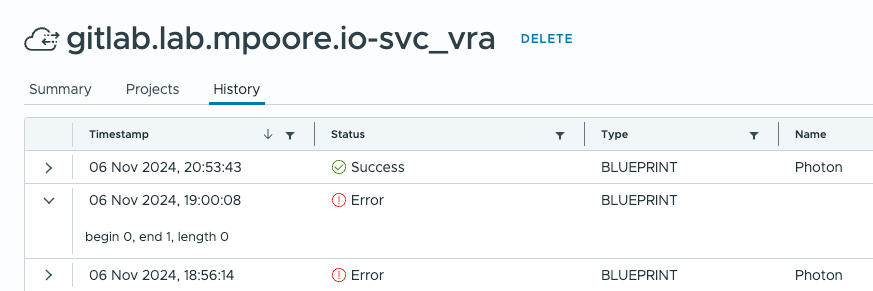
begin 0, end 1, length 0The error text isn’t comprehensive in explaining what the issue is but knowing what I had added to cause it lead me to the answer after a couple of minutes of thinking and a Pilates class. Because the values for the ‘environment’ field are provided as part of the custom form and aren’t in the template itself, evaluation of the substring expression fails because environment is empty!
Solution
I told you that the solution was simple! Just add a default value to the field in the template:
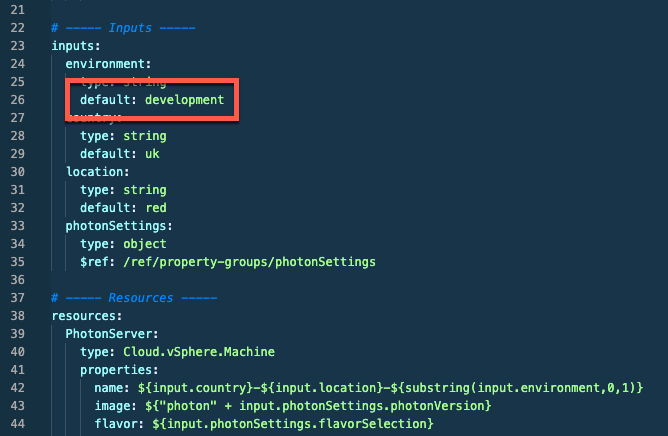
Looking back with the problem sorted, the error makes more sense. Hope that helps someone else!
Photo by Tara Evans.


Related Posts